
04-05-2013, 09:17 AM
|
|
Senior Member
|
|
 Tham gia ngày: May 2012 Tham gia ngày: May 2012
Bài gửi: 281
|
|
 Hướng dẫn dùng QuickPwn 2.1 - JB/ACT/Unlock iPhone 2G (firmware 2.1)- Windows
Bước 1: (bước chuẩn bị các phần mêm- nếu bạn đã từng có các phần mềm này thì bạn có thể bỏ qua)
Step1:
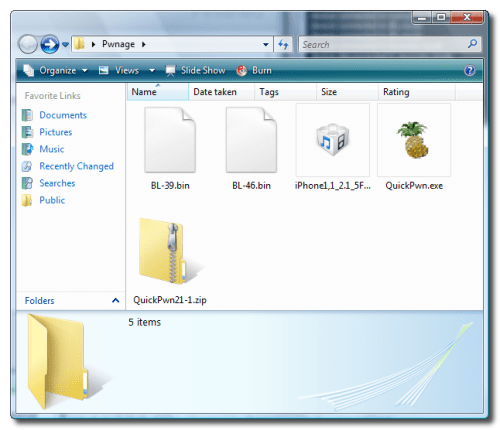
Tạo folder: Pwnage trên desktop của bạn
Create a folder called Pwnage on your desktop.
Download các phần mềm cần thiết sau đây về thư mục bạn vừa tạo ra:
Download the following files and place them in the Pwnage folder you just created:
- QuickPwn 2.1
- BL 3.9
- BL 4.6
- 2.1.0 (2G): iPhone1,1_2.1_5F136_Restore.ipsw
Giải nén QuickPwn21-1.zip vào thư mục : Pwnage
Extract the QuickPwn21-1.zip file to the Pwnage folder.
 Bước 2:
Step2:
Bước 2:
Step2:
 Cắm Iphone và compurte (à quên cắm dây usb
  ) và bật Itunes lên nhé
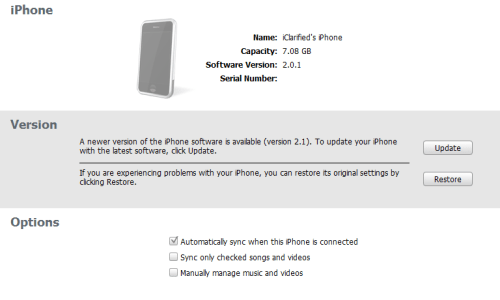
Connect your iPhone to the computer and launch iTunes.
Chọn iphone của bạn trên list các máy của itunes. Bây giờ bạn nhấn đồng thời phím Shift và nút Restore trên intunes.
Select your iPhone from the list of devices on the left. Now hold down shift and click the Restore button. Restore is preferred as it won't create any wasted space on your iPhone.
(Nếu Iphone của bạn đang trục trặc, hoặc muốn làm lại chế độ từ đầu bạn có thể làm:
Bấm nút power + home cùng lúc, giữ đó cho đến khi phone reboot, thả nút power ra, vẫn giữ nút home cho đến khi nào iphone hiện lên sợi dây và CD, lúc đó Shift +restore lại với firmware 2.1) ) và bật Itunes lên nhé
Connect your iPhone to the computer and launch iTunes.
Chọn iphone của bạn trên list các máy của itunes. Bây giờ bạn nhấn đồng thời phím Shift và nút Restore trên intunes.
Select your iPhone from the list of devices on the left. Now hold down shift and click the Restore button. Restore is preferred as it won't create any wasted space on your iPhone.
(Nếu Iphone của bạn đang trục trặc, hoặc muốn làm lại chế độ từ đầu bạn có thể làm:
Bấm nút power + home cùng lúc, giữ đó cho đến khi phone reboot, thả nút power ra, vẫn giữ nút home cho đến khi nào iphone hiện lên sợi dây và CD, lúc đó Shift +restore lại với firmware 2.1)
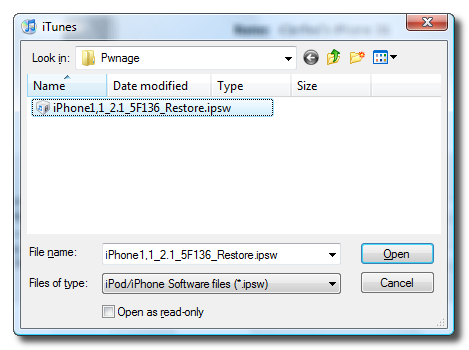
 Mở đến thư mục Pwnage trên desktop và chọn firmware 2.1 mà bạn đã download về, Click và open để tiếp tục:
Navigate to the Pwnage folder on your desktop and select the 2.1 firmware ipsw. Click the Open button to continue.
Mở đến thư mục Pwnage trên desktop và chọn firmware 2.1 mà bạn đã download về, Click và open để tiếp tục:
Navigate to the Pwnage folder on your desktop and select the 2.1 firmware ipsw. Click the Open button to continue.
 Bước thứ 3:
Step Three
Bước thứ 3:
Step Three
 Đợi đến khi intunes update xong firmware 2.1 thì bạn có thể chạy quickPwn.exe trong thư mục Pwnage trên desktop:
Once iTunes has finished updating your iPhone to the 2.1 firmware you may launch QuickPwn.exe from the Pwnage folder on your desktop.
Bước 4:
Step Four:
Chắc chắn rằng iphone của bạn đã kết nối tới máy tính và click vào mũi tên màu xanh để tiếp tục:
Make sure you iPhone is connected to the computer and click the blue arrow to continue.
Đợi đến khi intunes update xong firmware 2.1 thì bạn có thể chạy quickPwn.exe trong thư mục Pwnage trên desktop:
Once iTunes has finished updating your iPhone to the 2.1 firmware you may launch QuickPwn.exe from the Pwnage folder on your desktop.
Bước 4:
Step Four:
Chắc chắn rằng iphone của bạn đã kết nối tới máy tính và click vào mũi tên màu xanh để tiếp tục:
Make sure you iPhone is connected to the computer and click the blue arrow to continue.
 Bước 5
Step Five
Click và nút Browse và chọn tới firmware mà bạn vừa down về :
Click the Browse button to locate your iPhone firmware.
Bước 5
Step Five
Click và nút Browse và chọn tới firmware mà bạn vừa down về :
Click the Browse button to locate your iPhone firmware.
 Bước 6:
Step Six
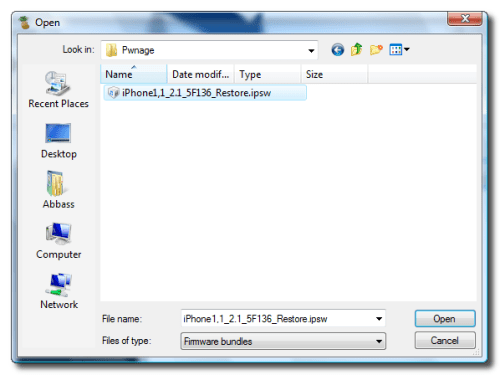
Chọn tới firmware 2.1 trong thư mục pwnage và Click vào nút opne.
Select the 2.1 firmware ipsw from the Pwnage folder on your desktop then click the Open button.
Bước 6:
Step Six
Chọn tới firmware 2.1 trong thư mục pwnage và Click vào nút opne.
Select the 2.1 firmware ipsw from the Pwnage folder on your desktop then click the Open button.
 Buớc 7:
Step Seven
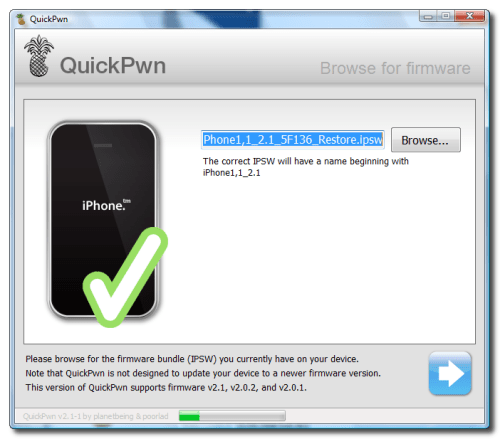
QuickPwn sẽ kiểm tra để chắc chắn rằng bản ipsw đó có hiệu lực. Sau đó Click vào Mũi tên màu xanh để tiếp tục
QuickPwn will check to make sure the ipsw is valid. Click the blue arrow button to continue
Buớc 7:
Step Seven
QuickPwn sẽ kiểm tra để chắc chắn rằng bản ipsw đó có hiệu lực. Sau đó Click vào Mũi tên màu xanh để tiếp tục
QuickPwn will check to make sure the ipsw is valid. Click the blue arrow button to continue
 Bước 8:
Step Eight
Bạn có thể chọn các lựa chọn Cydia , Installer, Replace Logo khởi động và tất nhiên là Unlock Phone. ( ở bước này nếu bạn thích logo quả dứa thì chọn Raplace Logo, nếu không thì bỏ trống ở lựa chọn này ) Để unlock ổn định thì bạn nên chọn 3 lựa chọn ưu tiên trên và Click Mũi tên màu xanh để tiếp tục.
You can now select whether to Add Cydia, Add Installer, Replace Boot Logos, and Unlock Phone. Select the ones you would like to perform then click the clue arrow button
Bước 8:
Step Eight
Bạn có thể chọn các lựa chọn Cydia , Installer, Replace Logo khởi động và tất nhiên là Unlock Phone. ( ở bước này nếu bạn thích logo quả dứa thì chọn Raplace Logo, nếu không thì bỏ trống ở lựa chọn này ) Để unlock ổn định thì bạn nên chọn 3 lựa chọn ưu tiên trên và Click Mũi tên màu xanh để tiếp tục.
You can now select whether to Add Cydia, Add Installer, Replace Boot Logos, and Unlock Phone. Select the ones you would like to perform then click the clue arrow button
 Bước 9:
Step Nine
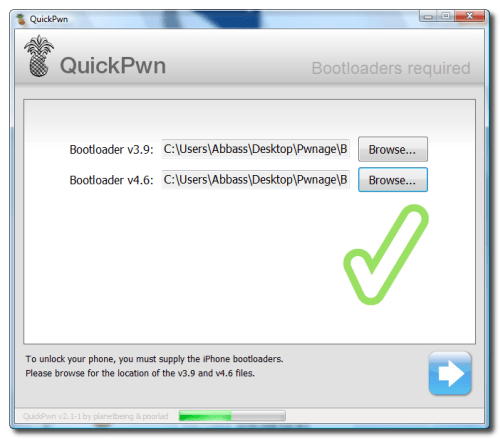
Bây giờ bạn lựa chọn Bootloader. Click vào nút Browse và chọn file bootload 3.9 trong thư mục Pwnage và làm như vậy với lựa chọn file 4.6. Tiếp tục Click vào mũi tên màu xanh để tiếp tục
You will now be asked to select your bootloader files. Click the Browse button and select the 3.9 bootloader from the Pwnage folder on your desktop. Likewise do the same thing for the 4.6 bootloader file. Then click the blue arrow button to continue.
Bước 9:
Step Nine
Bây giờ bạn lựa chọn Bootloader. Click vào nút Browse và chọn file bootload 3.9 trong thư mục Pwnage và làm như vậy với lựa chọn file 4.6. Tiếp tục Click vào mũi tên màu xanh để tiếp tục
You will now be asked to select your bootloader files. Click the Browse button and select the 3.9 bootloader from the Pwnage folder on your desktop. Likewise do the same thing for the 4.6 bootloader file. Then click the blue arrow button to continue.

 Bước 10:
Step Ten
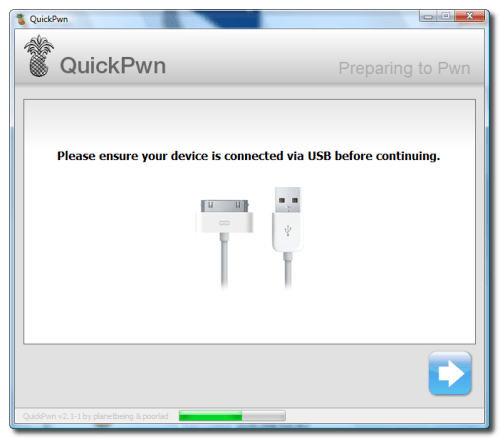
QuickPwn sẽ hỏi bạn xem xác nhận kết nối Iphone tới máy của bạn trước khi tiếp tục. Khi đã chắc chắn rồi thì bạn nhấn vào mũi tên mà xanh để tiếp tục.
QuickPwn will now ask you to confirm your iPhone is connected via USB before continuing. Click the blue arrow button to proceed.
Bước 10:
Step Ten
QuickPwn sẽ hỏi bạn xem xác nhận kết nối Iphone tới máy của bạn trước khi tiếp tục. Khi đã chắc chắn rồi thì bạn nhấn vào mũi tên mà xanh để tiếp tục.
QuickPwn will now ask you to confirm your iPhone is connected via USB before continuing. Click the blue arrow button to proceed.
 Bước 11.
Step Eleven
QuickPwn sẽ tự đưa iphone của bạn về chế độ Recovery. Sau khi Recovery , bạn sẽ được nhắc nhở để:
Giữ nút Home 5 giây. Giữ nút Home và nhấn nút Power 10 giây, sau đó thả nút Power và vẫn giữ nút Home cho đến khi Iphone chuyển sang chế độ DFU. Chú ý chắc chắn bạn làm đúng theo chỉ dẫn trên.
QuickPwn will now automatically put your iPhone into recovery mode. Once its in recovery mode you will be prompted to: Hold the Home button for 5 seconds, Hold the Home and Power buttons for 10 seconds, then release the Power button and continuing holding the Home button until your iPhone is in DFU mode.
Watch the prompts carefully and follow along
Bước 11.
Step Eleven
QuickPwn sẽ tự đưa iphone của bạn về chế độ Recovery. Sau khi Recovery , bạn sẽ được nhắc nhở để:
Giữ nút Home 5 giây. Giữ nút Home và nhấn nút Power 10 giây, sau đó thả nút Power và vẫn giữ nút Home cho đến khi Iphone chuyển sang chế độ DFU. Chú ý chắc chắn bạn làm đúng theo chỉ dẫn trên.
QuickPwn will now automatically put your iPhone into recovery mode. Once its in recovery mode you will be prompted to: Hold the Home button for 5 seconds, Hold the Home and Power buttons for 10 seconds, then release the Power button and continuing holding the Home button until your iPhone is in DFU mode.
Watch the prompts carefully and follow along
 Bước 12:
Step Twelve
Sau khi QuickPwn nhận ra iPhone của bạn trong chế độ DFU sẽ tiến hành Jaibreak.
Once QuickPwn detects your iPhone in DFU mode it will begin the jailbreak process.
Bước 12:
Step Twelve
Sau khi QuickPwn nhận ra iPhone của bạn trong chế độ DFU sẽ tiến hành Jaibreak.
Once QuickPwn detects your iPhone in DFU mode it will begin the jailbreak process.
 Bước 13:
Step Thirteen
Bước 13:
Step Thirteen
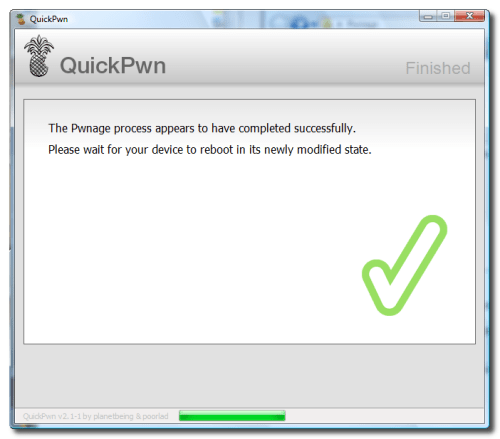 Sau khi jailbreaking hoàn thành thì QuickPwn sẽ thông báo cho bạn đã thành công. Iphone của bạn sẽ tiến hành chạy BootNeuter. Công đoạn này sẽ mất khoảng 5 phút.Hãy kiên nhẫn chờ đợi nhé. IPhone của bạn sẽ khởi động lại khi nó đã hoàn thành quá trình thành công.
Lưu ý: Sau khi QuickPwn chạy xong Iphone sẽ khởi động và Bootneuter sẽ chạy để unlock Iphone của bạn nên không được đụng chạm gì vào iPhone
Once jailbreaking is complete QuickPwn will inform you that it was successfull. Your iPhone will then proceed to run BootNeuter. This process will take about 5 minutes. Please be patient. Your iPhone will reboot when it has completed the process successfully!
Fix lỗi:
vào Cydia up hết lên!
Sau khi jailbreaking hoàn thành thì QuickPwn sẽ thông báo cho bạn đã thành công. Iphone của bạn sẽ tiến hành chạy BootNeuter. Công đoạn này sẽ mất khoảng 5 phút.Hãy kiên nhẫn chờ đợi nhé. IPhone của bạn sẽ khởi động lại khi nó đã hoàn thành quá trình thành công.
Lưu ý: Sau khi QuickPwn chạy xong Iphone sẽ khởi động và Bootneuter sẽ chạy để unlock Iphone của bạn nên không được đụng chạm gì vào iPhone
Once jailbreaking is complete QuickPwn will inform you that it was successfull. Your iPhone will then proceed to run BootNeuter. This process will take about 5 minutes. Please be patient. Your iPhone will reboot when it has completed the process successfully!
Fix lỗi:
vào Cydia up hết lên!
add source:
http://iphone.gsm.vn
vào mục GSMVN - Tools:
Cài các soft:
1.fix autocorrect
2.Fix lỗi hiển thị tên người trong SMS
3.Cài mobilinstalls
sau đó thì cài soft tuỳ thích nhá.
bài sau sẽ là:
Cách tạo Account Free cho Itunes
Cài đặt các app trên App Store cho iPhone chạy FW 2.x
Trích dẫn: http://iclarified.com/entry/index.php?enid=1880
Dịch, bổ sung: Conan2901
Confirm: Dtube

|
->